14. BactoCloud
BactoCloud is the secure cloud platform for BactoSense users, enabling real-time visibility, remote access, and intelligent data integration across all water monitoring operations.
14.1 IT requirements
BactoSense initiates an outbound internet connection to BactoCloud. The connection can use BactoLink, a 4G/5G access point or wired internet. Multiple instruments can share an internet connection behind NAT; no VPN or inbound port forwarding is required.
| Requirement | Configuration |
|---|---|
| Network addressing | Provide a working IP address, subnet mask, gateway and DNS resolver. DHCP and static addressing are supported. Confirm static settings with the network administrator. |
| Outbound access | Allow outbound access to *.bactocloud.com and *.bnovate.net from the instrument network. |
| Bandwidth | Plan for more than 1 Mbit/s. |
| Data usage | Allow roughly 0.5–1 GB per month per instrument measuring hourly. Historical synchronization, diagnostics and software updates add traffic. |
| Time synchronization | Configure an approved time source where required so event timestamps can be correlated. |
| Browser proxy | A proxy used by BactoCloud users must support secure WebSocket connections to BactoCloud. |
Keep the instrument's local web interface on a controlled plant network and do not expose instrument services to the public internet. Existing PLC, Modbus and I/O connections can remain in use.
For instrument configuration, see Network configuration and Set NTP Servers.
14.2 Registration
Visit www.bactocloud.com/register, enter the requested account details and complete email verification. Registration creates your personal account; organization membership connects it to an instrument fleet.
If you received an invitation, follow its link and sign in or register with the exact email address that was invited. After accepting the invitation, select the organization from the header.
To create an organization for your own fleet, open the organization selector in the header and choose New Organisation. Enter its name, choose its time zone and applications, then select Create Organisation. Select the intended organization before generating an enrolment code.
14.3 Instrument enrolment
Enrolment connects an instrument to one BactoCloud organization. You need permission to enrol instruments in that organization and an admin account on the instrument. Use the instrument's touchscreen or an approved VNC remote view of that touchscreen. An instrument can belong to only one organization at a time.
Before enrolment, check the installed BactoSense software: Rev3 instruments require 3.1.0 or later, and Rev2 instruments require 2.4.0 or later. Individual cloud features can require newer software or instrument options. If you cannot install an update locally, contact your service channel before proceeding.
14.3.1 Generate an enrolment code
- Sign in to BactoCloud and use the organization selector to choose the organization that should own the instrument.
- Open the organization selector in the header, choose Organisation Settings, then Instruments in the sidebar. Select Enrol instrument. This action is also available on the empty fleet page when no instruments are enrolled.
- Review the enrolment explanation and software requirement, then select Generate new code.
- Write down or copy the generated code.
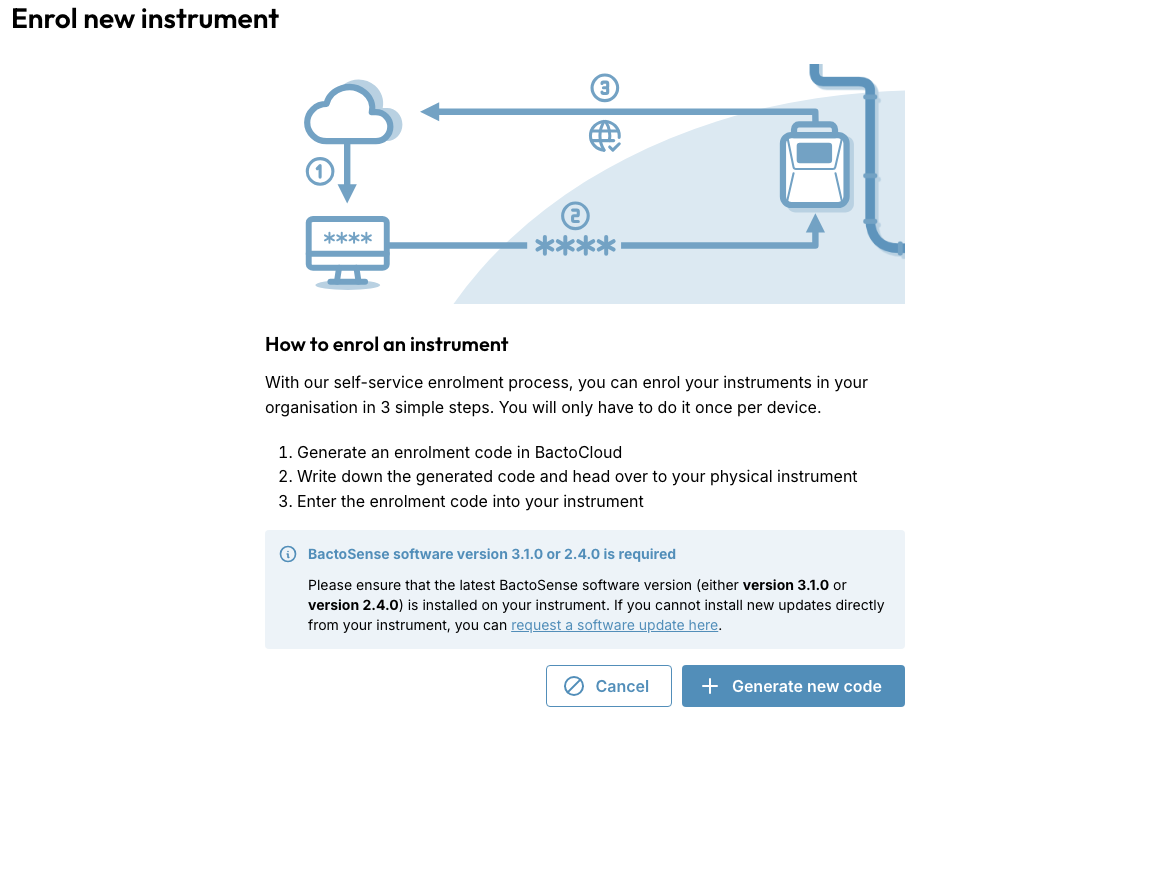
The Enrolment codes section lists existing codes and their expiry dates. Use a code before its listed expiry date, or generate a replacement if it has expired. Each code belongs to the organization in which it was generated. If the enrolment action is unavailable, ask an organization administrator to check your access.
14.3.2 Enter the code on the instrument
-
On the BactoSense Home screen, select Settings in the bottom toolbar.

-
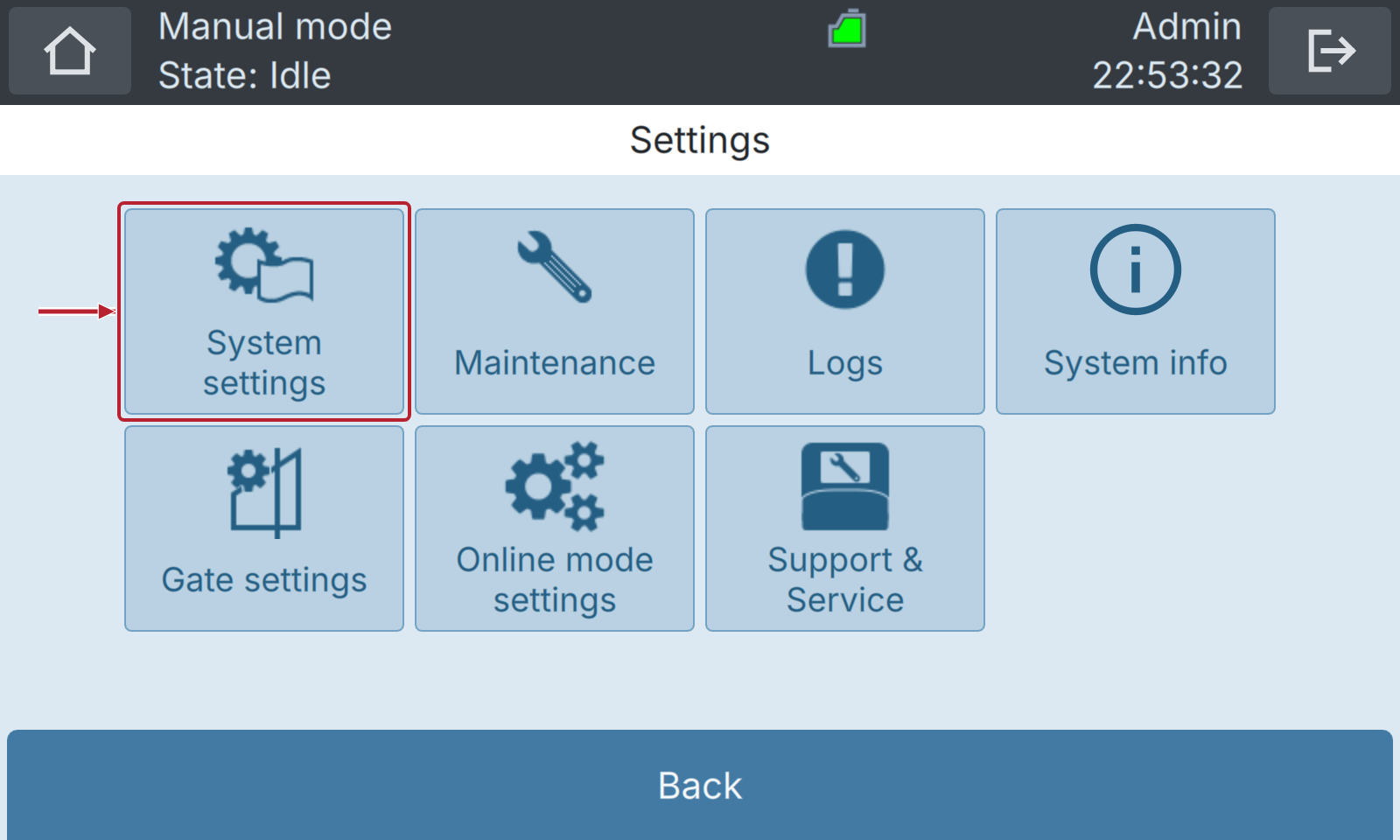
Select System settings in the Settings menu.
-
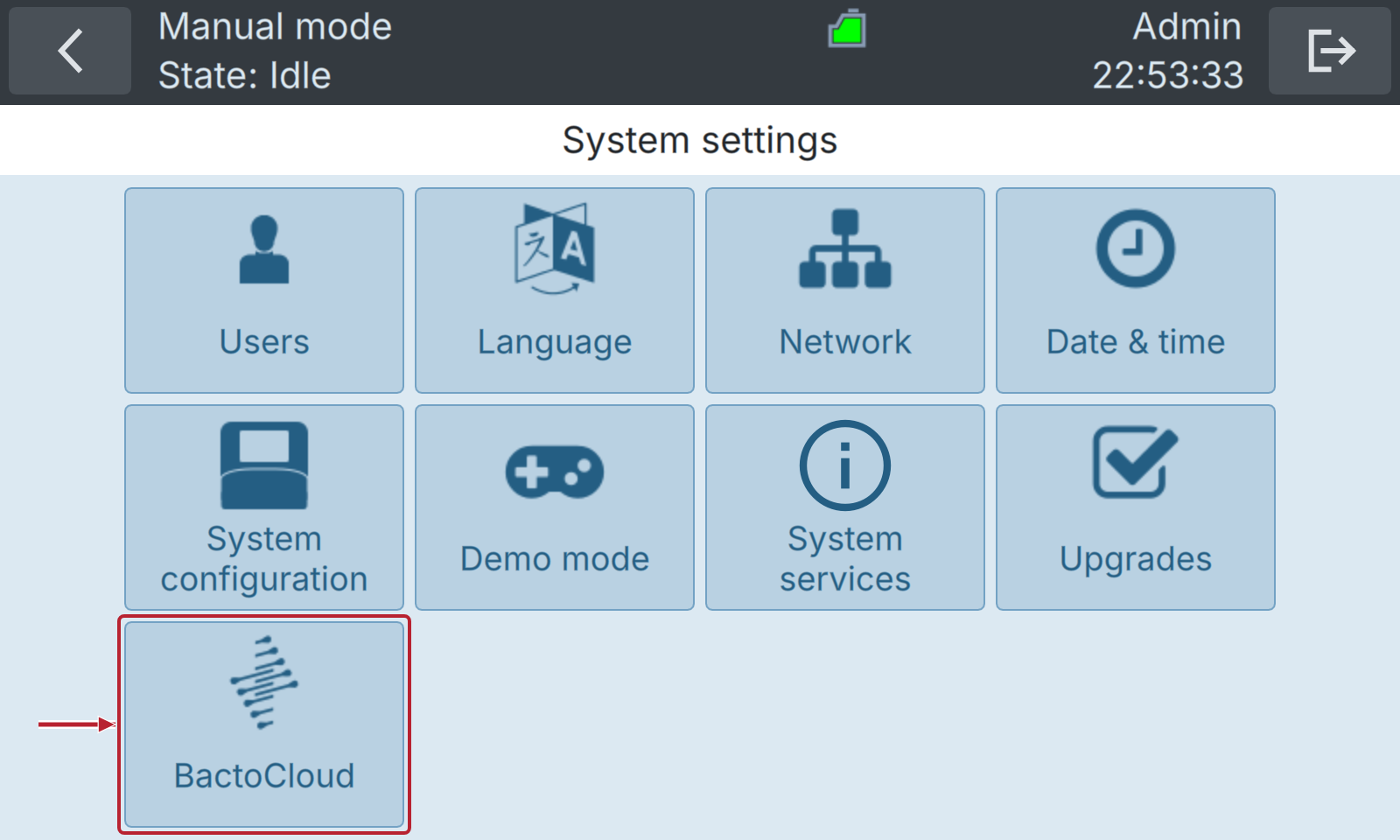
Select BactoCloud to open Cloud Settings.
-
Select Enroll, enter the code generated in BactoCloud and confirm the entry. Follow the on-screen messages, then check that Enrolled shows Yes and Organisation names the intended organization.
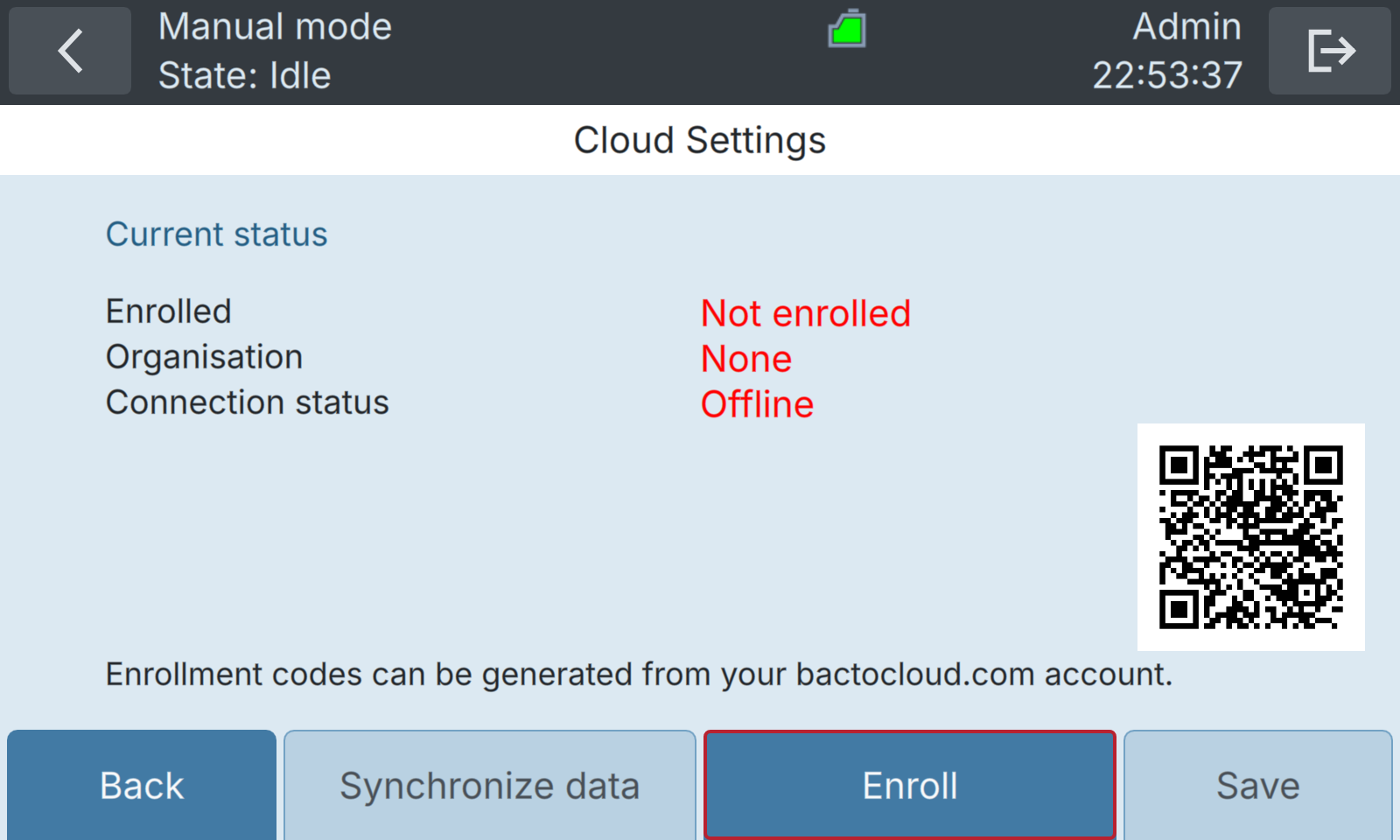
If BactoCloud is unavailable, check your local user role and whether Demo mode or PLC mode is active.
14.3.3 Confirm enrolment
In BactoCloud, use the header's organization selector to open Organisation Settings → Instruments and check the instrument's name, serial number and reported connection state. Confirm that its latest status and measurements arrive. Last seen at is the time of the latest status received by BactoCloud; it does not test the current network connection.
If the instrument is missing, verify that you generated the code under the intended organization and completed the instrument procedure. If a code is rejected or the instrument already belongs to another organization, ask an organization administrator or support for help.
If status or measurements stop arriving, note the instrument serial number, software version, timestamp and last successful upload. Ask the network administrator to verify DNS and outbound connectivity from the instrument network using the IT requirements.
The organization's instrument inventory also shows Enrolled since. Users with instrument deletion permission can select the row action Unlink Instrument from organisation. Before unlinking, export any measurements you need to retain. The confirmation warns that unlinking stops uploads and deletes the existing cloud measurements. Verify the target instrument, enter its serial number in the confirmation and select Unlink instrument.