5. Operation
5.1 Operation via BactoSense GUI
This section provides a basic introduction to the BactoSwitch operation and to viewing the results, which are very similar to BactoSense Online mode operation and data viewing. For more details, please refer to Measuring automatically in Online mode in the latest version of the BactoSense user manual.
5.1.1 Starting Online mode measurements
Make sure the BactoSwitch is correctly installed as described in Installation.
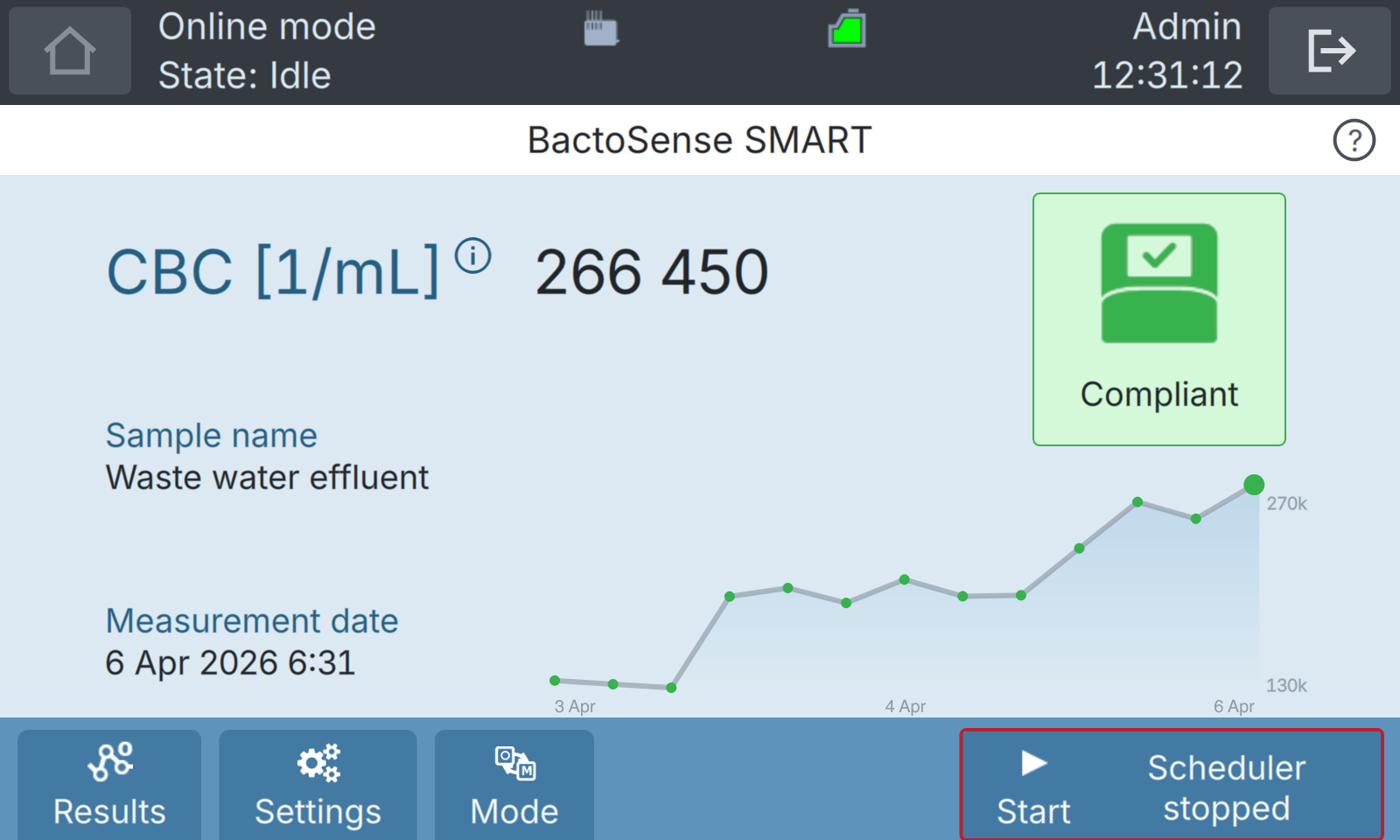
Navigate to the home screen of the BactoSense user interface. If the instrument is in Manual mode, switch it to Online mode with Mode. Then press Start:
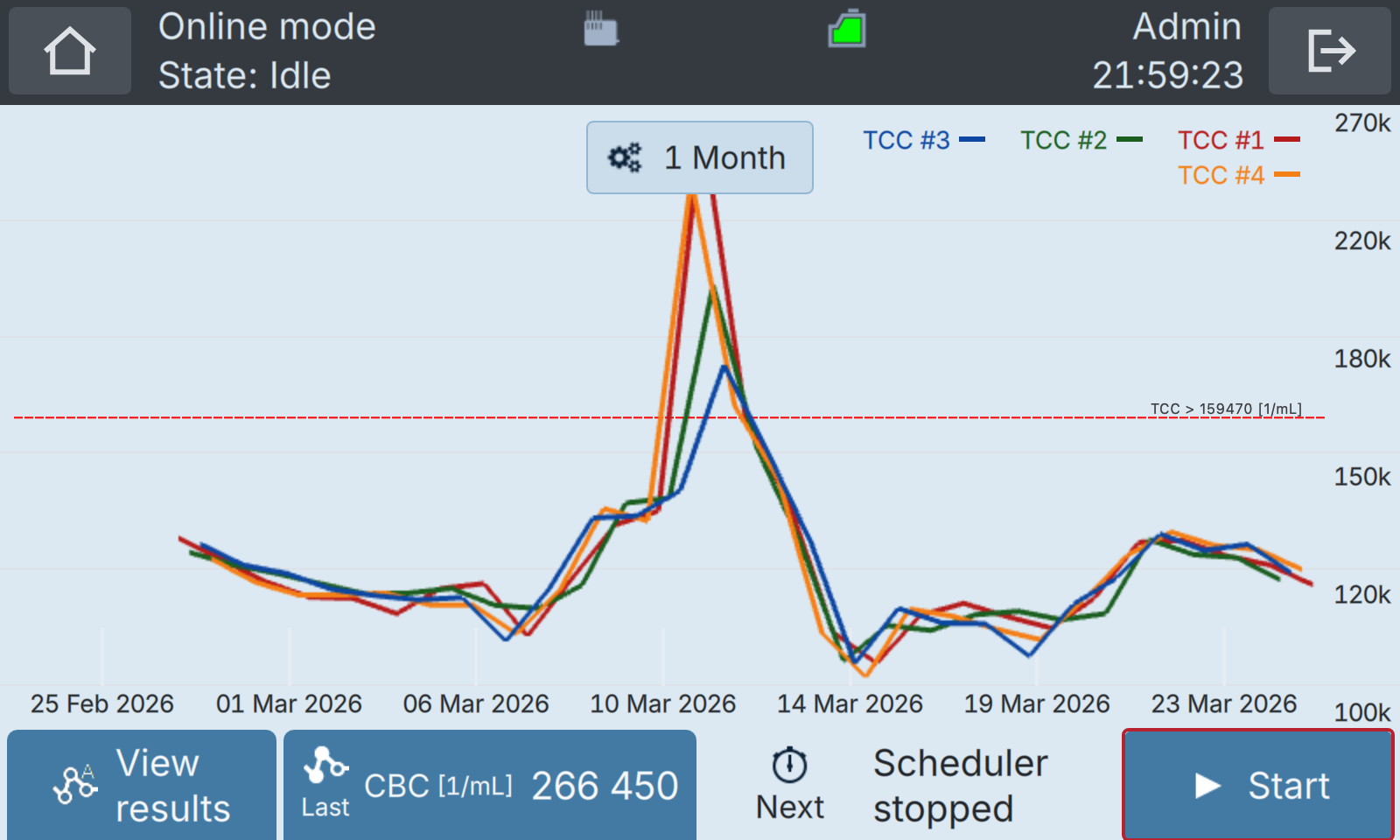
In the Online mode plot window, press Start:
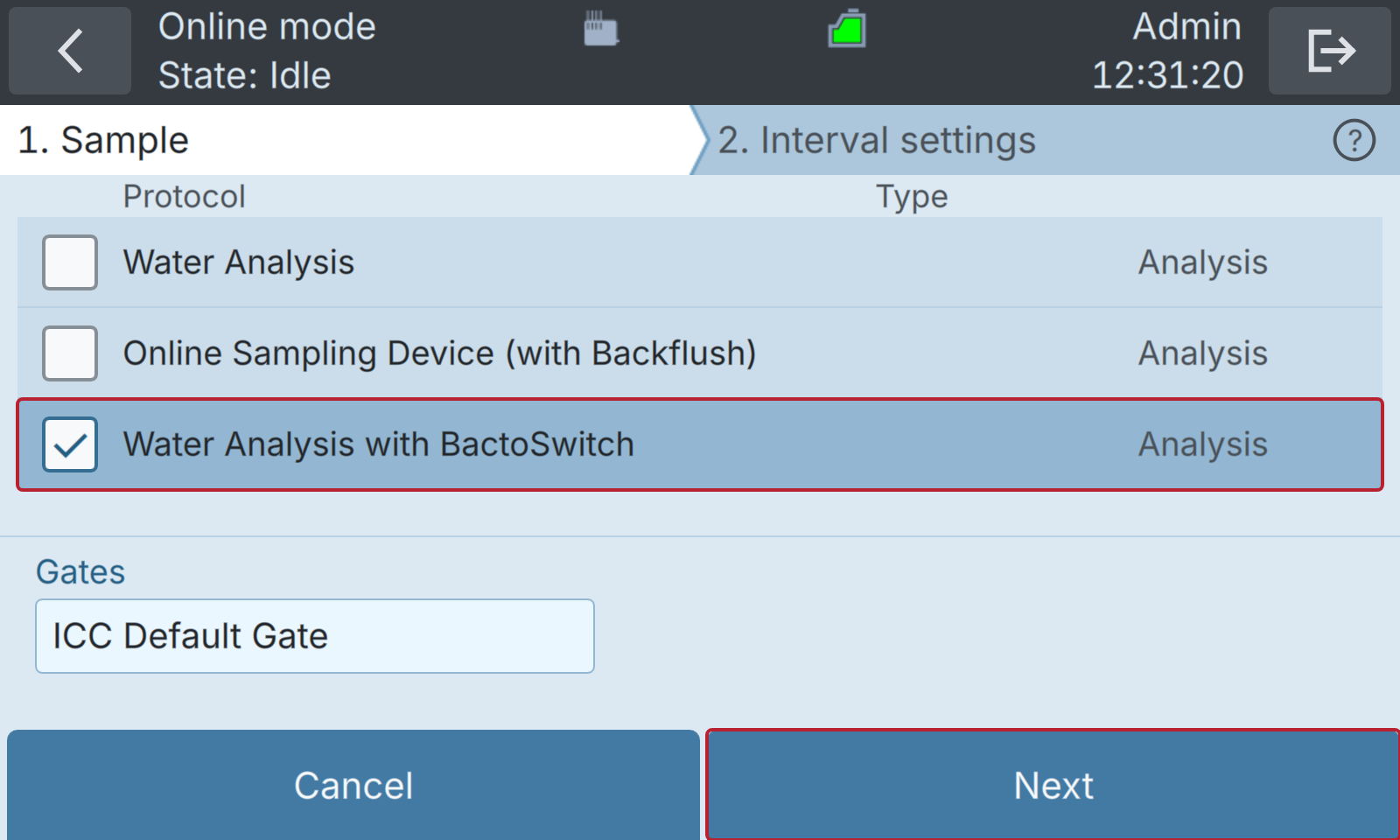
Select the protocol Water Analysis with BactoSwitch and press Next.
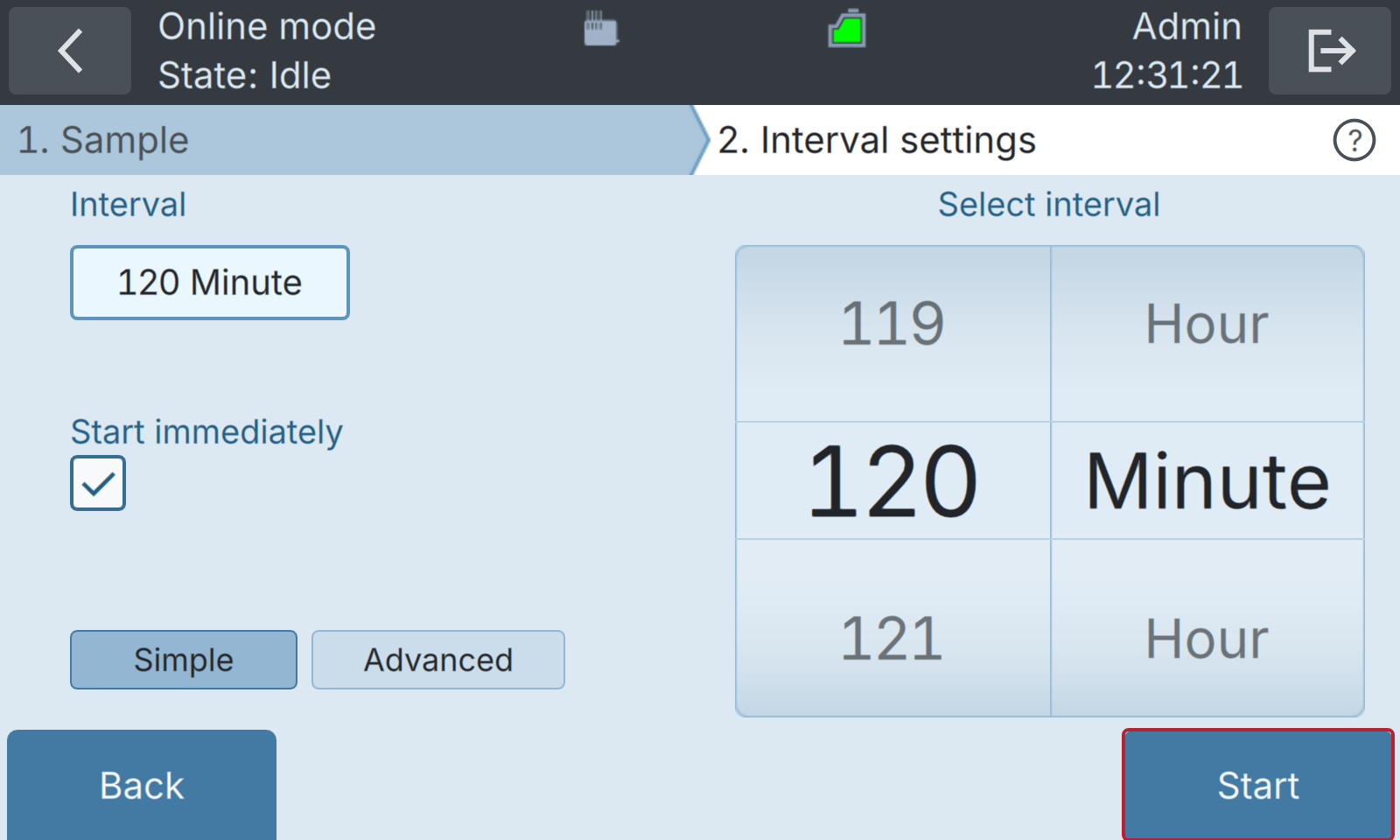
Finally, select the measurement interval and press Start. Note that this is the interval between each measurement. The measurement interval for each source is N times larger, where N is the number of enabled sources. For example, if you enable 4 sources and select an interval of 30 min, each single source is measured with an interval of 2 h.
5.1.2 Viewing measurement results
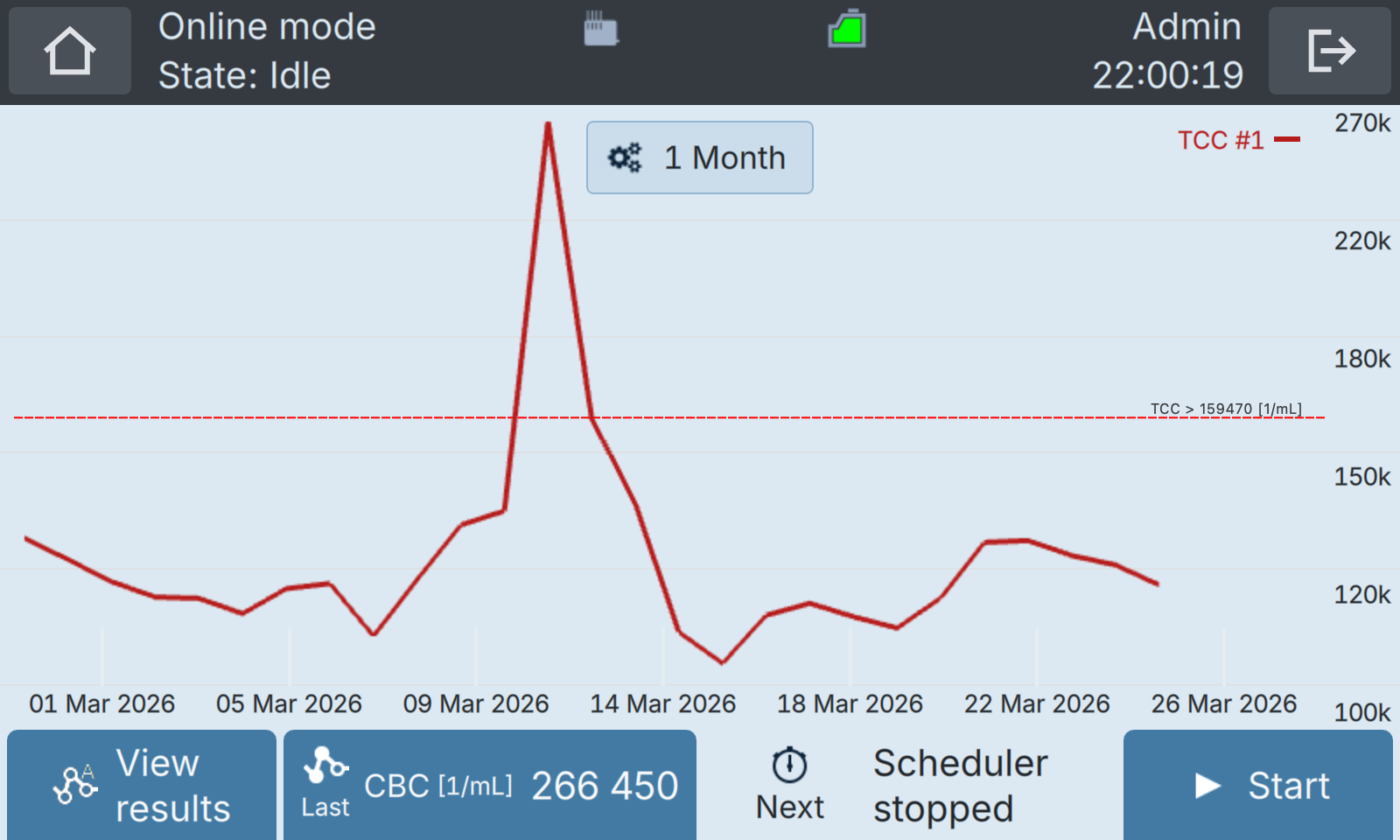
As soon as measurements are started, the Online mode plot window is shown again. When a BactoSwitch is connected, the Online mode window displays the individual line counts [1/mL], but no LNA/HNA [%] or other parameters.
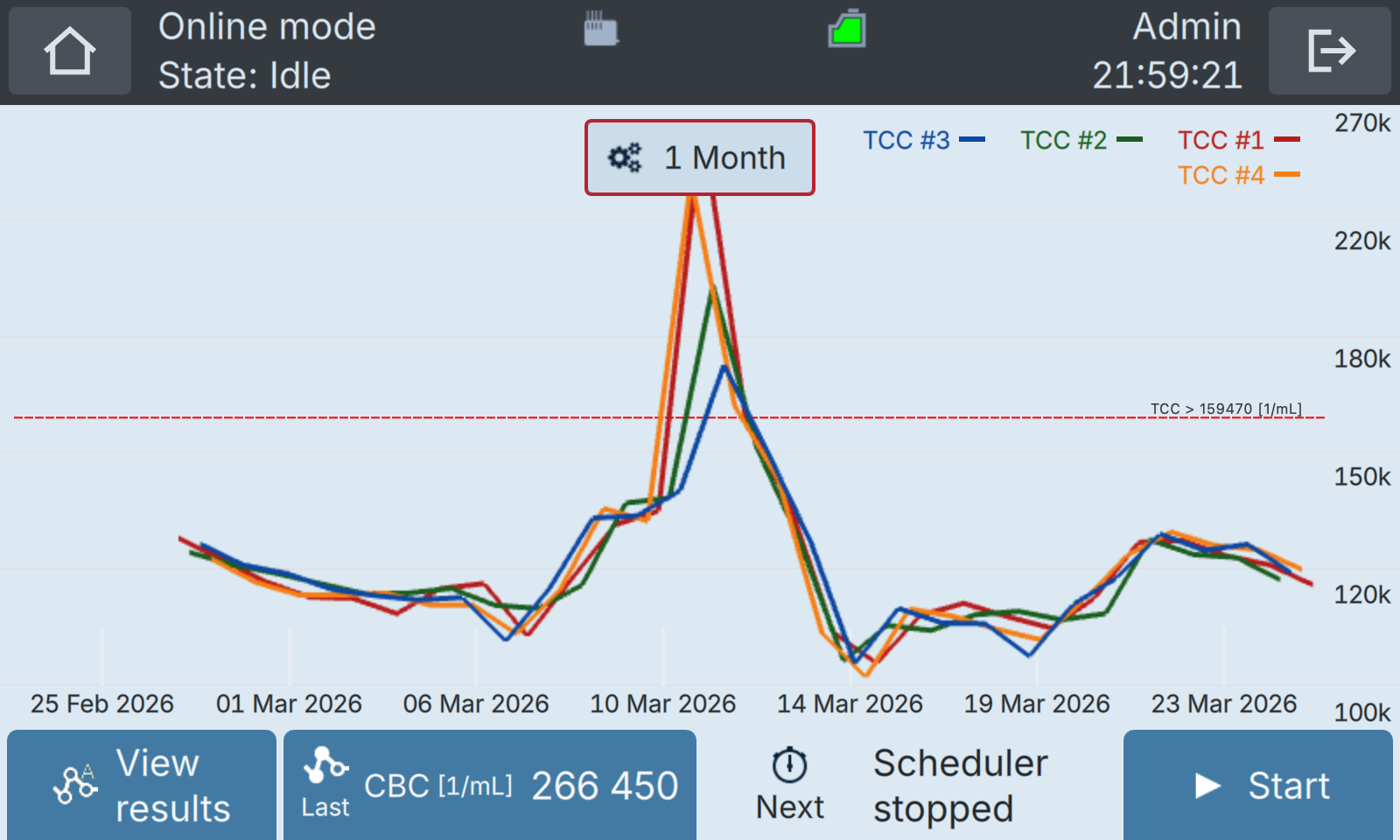
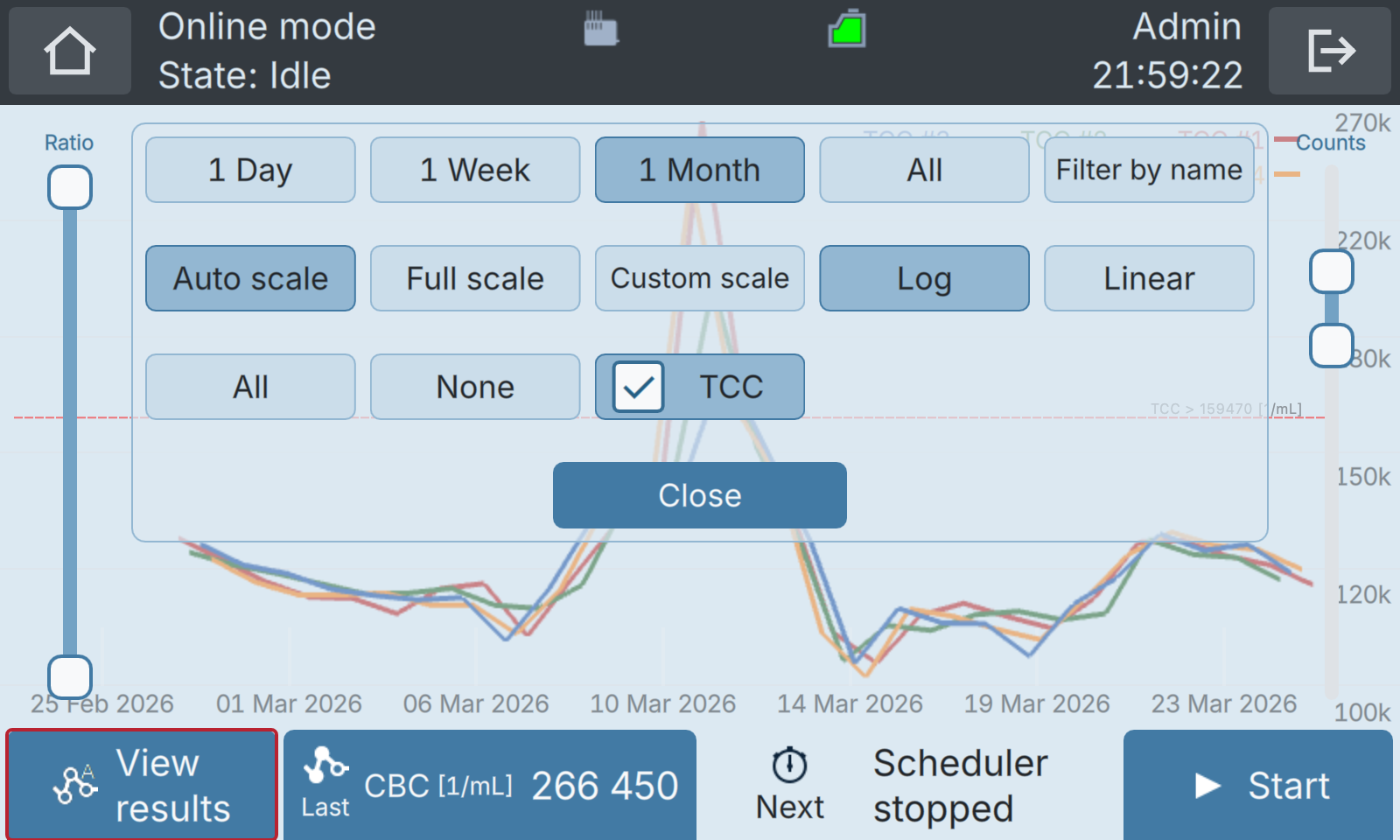
The display settings can be modified via the button at the top center of the plot.
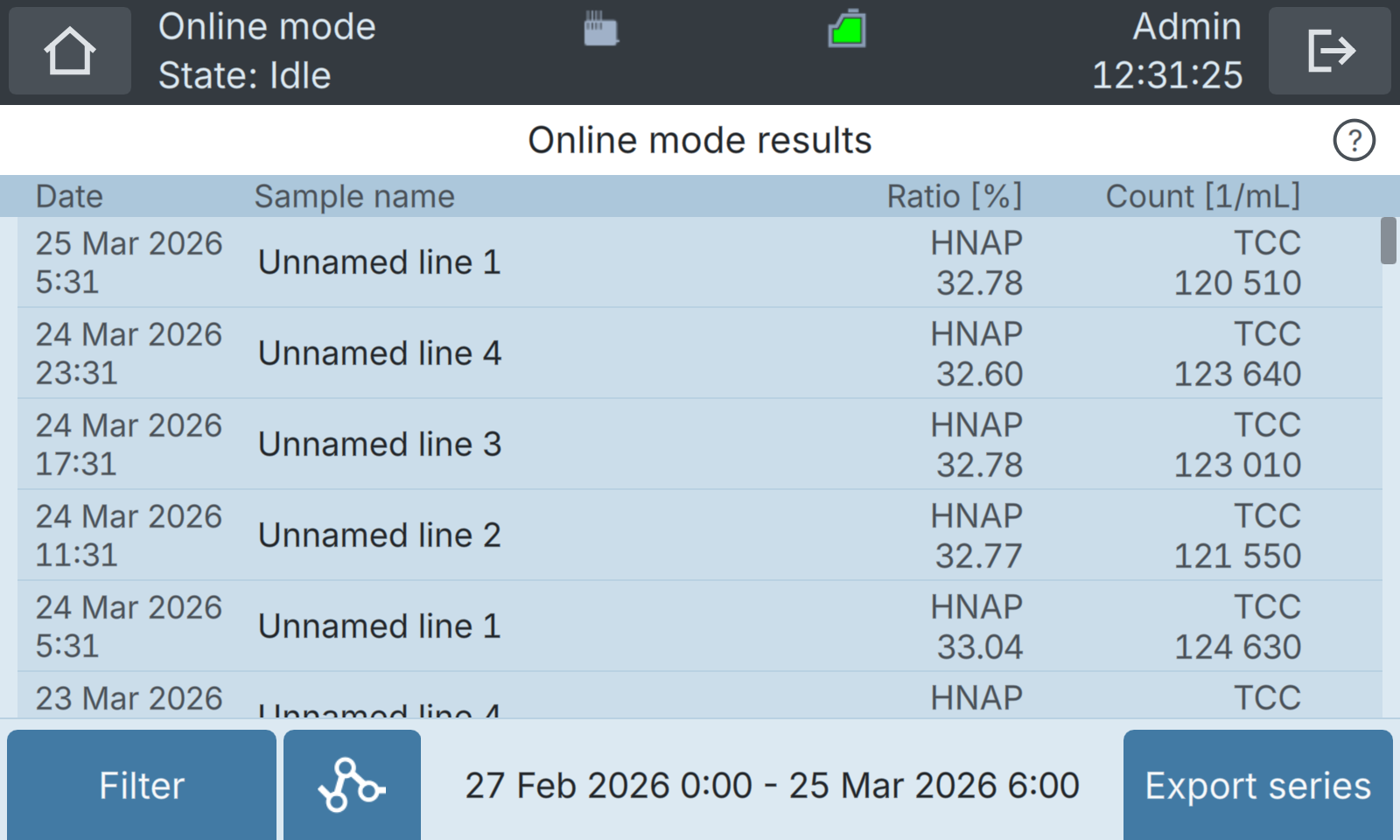
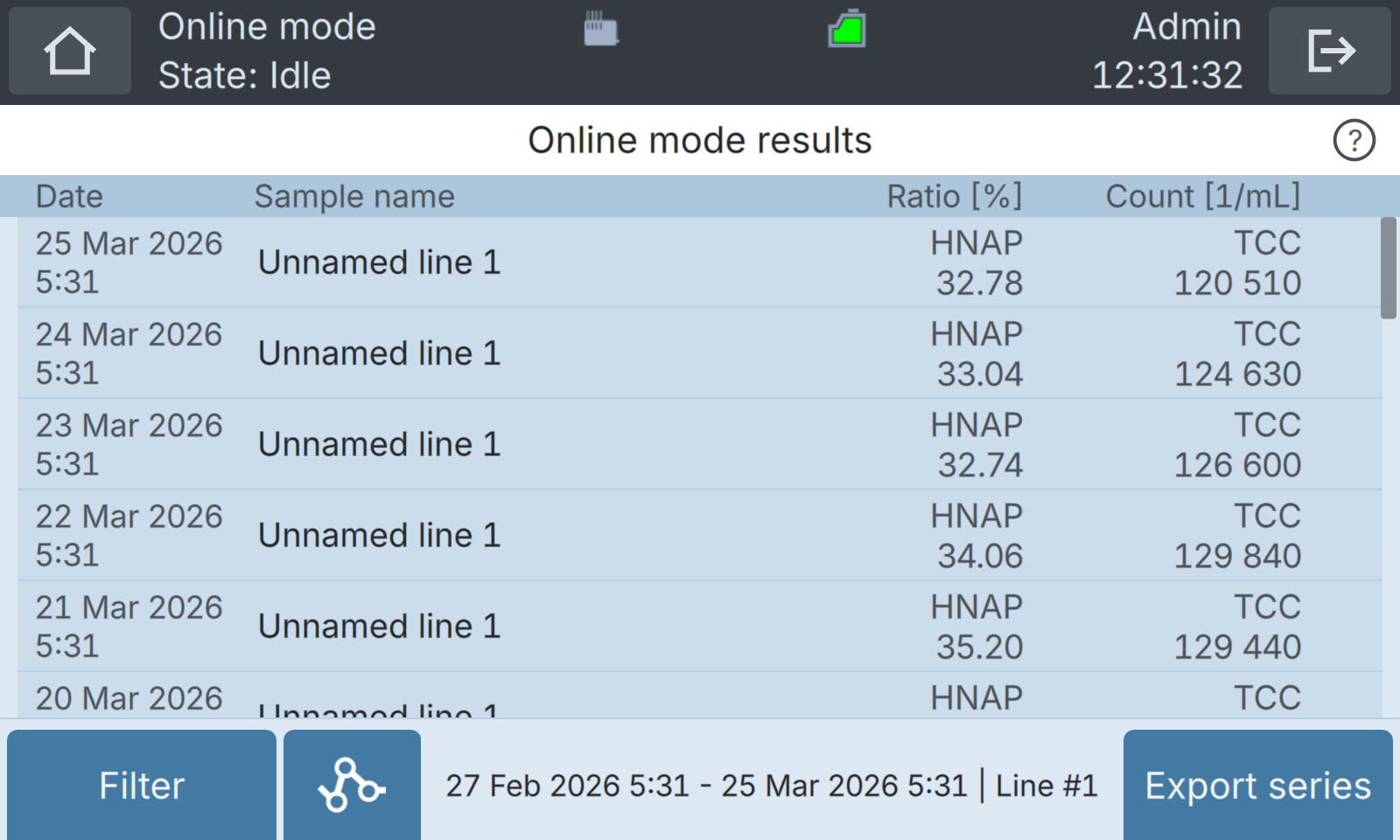
Pressing the View results button opens the Online mode results list. Sample names match the line names set in Line configuration.
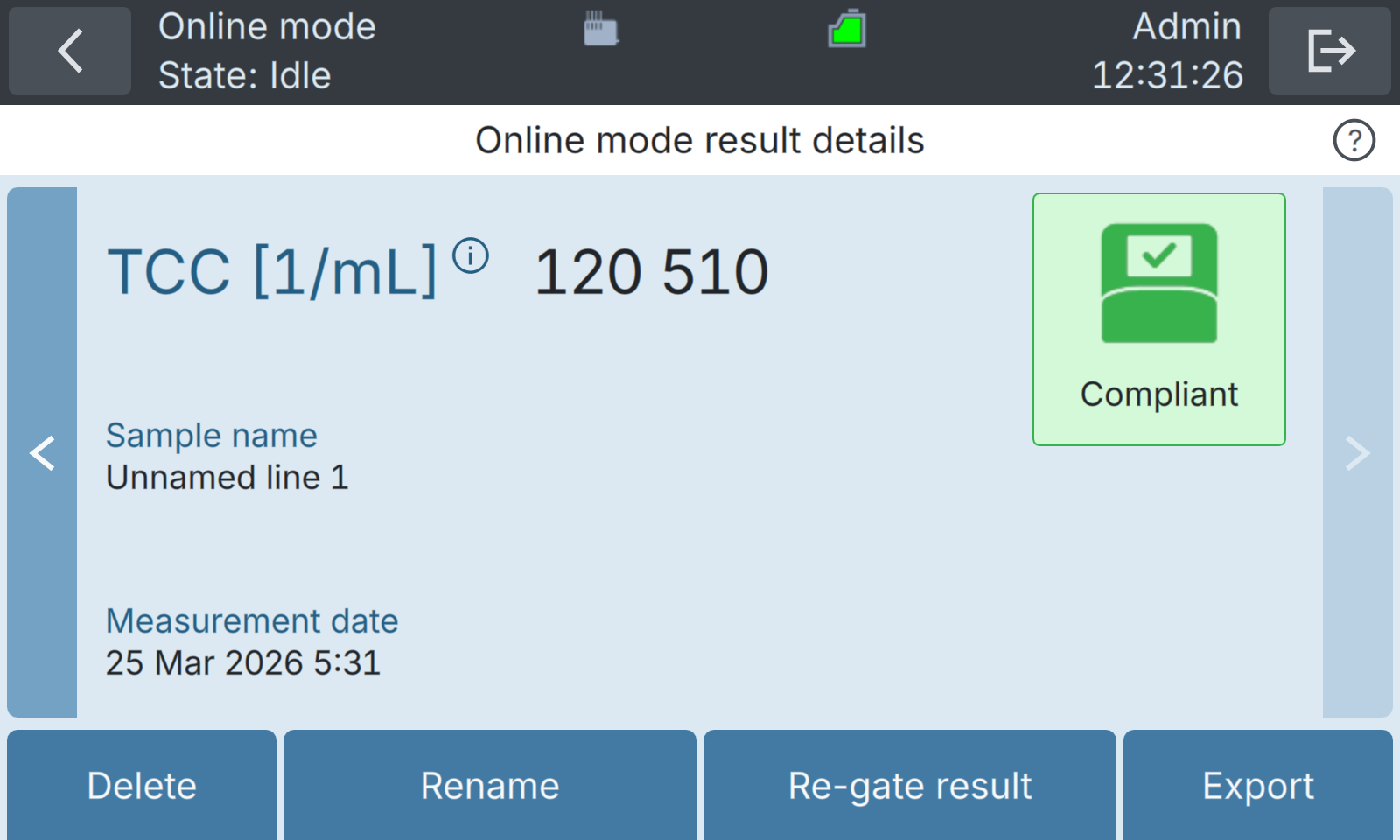
Pressing one of the measurements displays the details of that measurement (again, please refer to the BactoSense user manual for more details).
Pressing the Filter button in the Online mode results list opens the Filter results window. Here you can filter results based on a string via the Filter by name field.
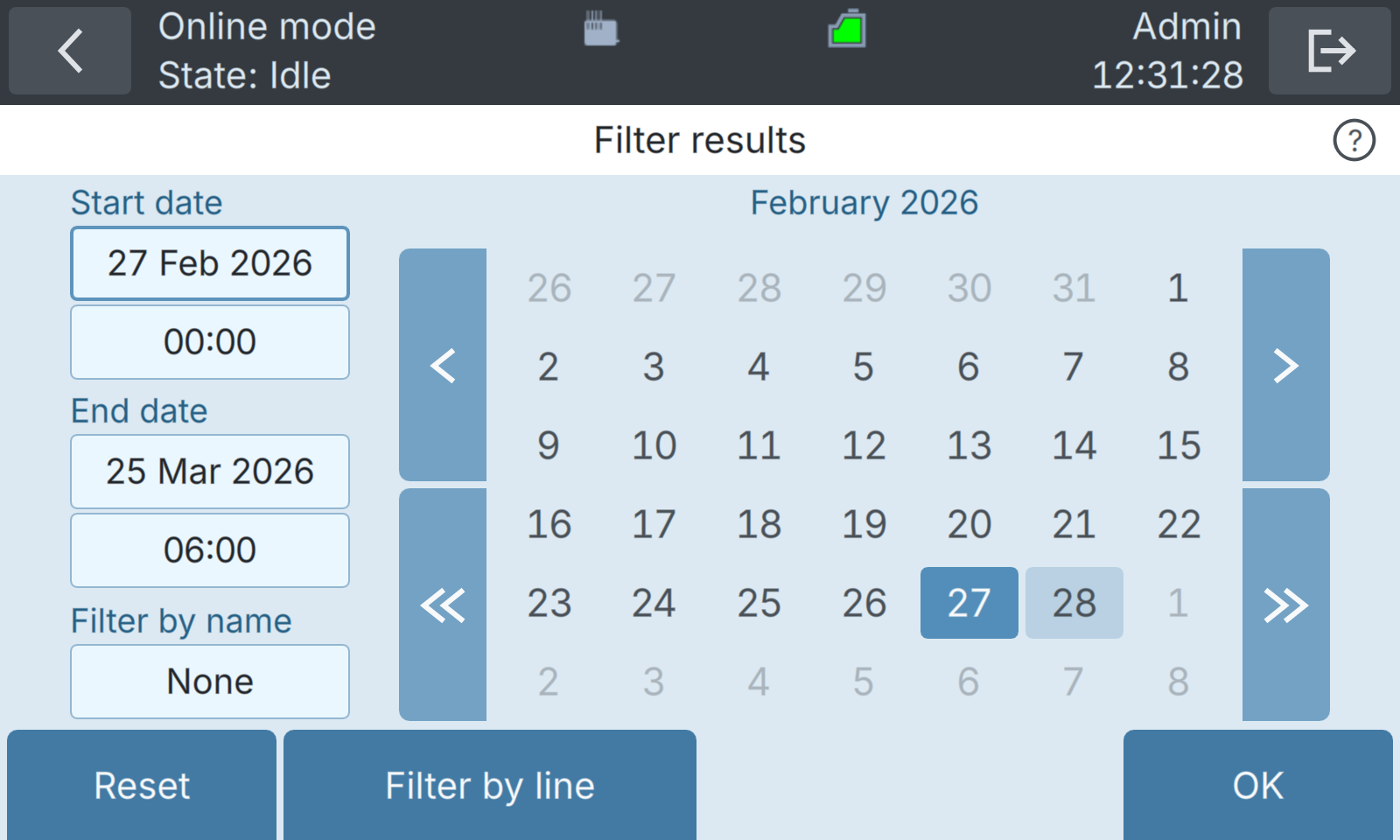
In addition to filtering by start and end dates and measurement name, pressing the Filter by line button allows filtering results by BactoSwitch line.
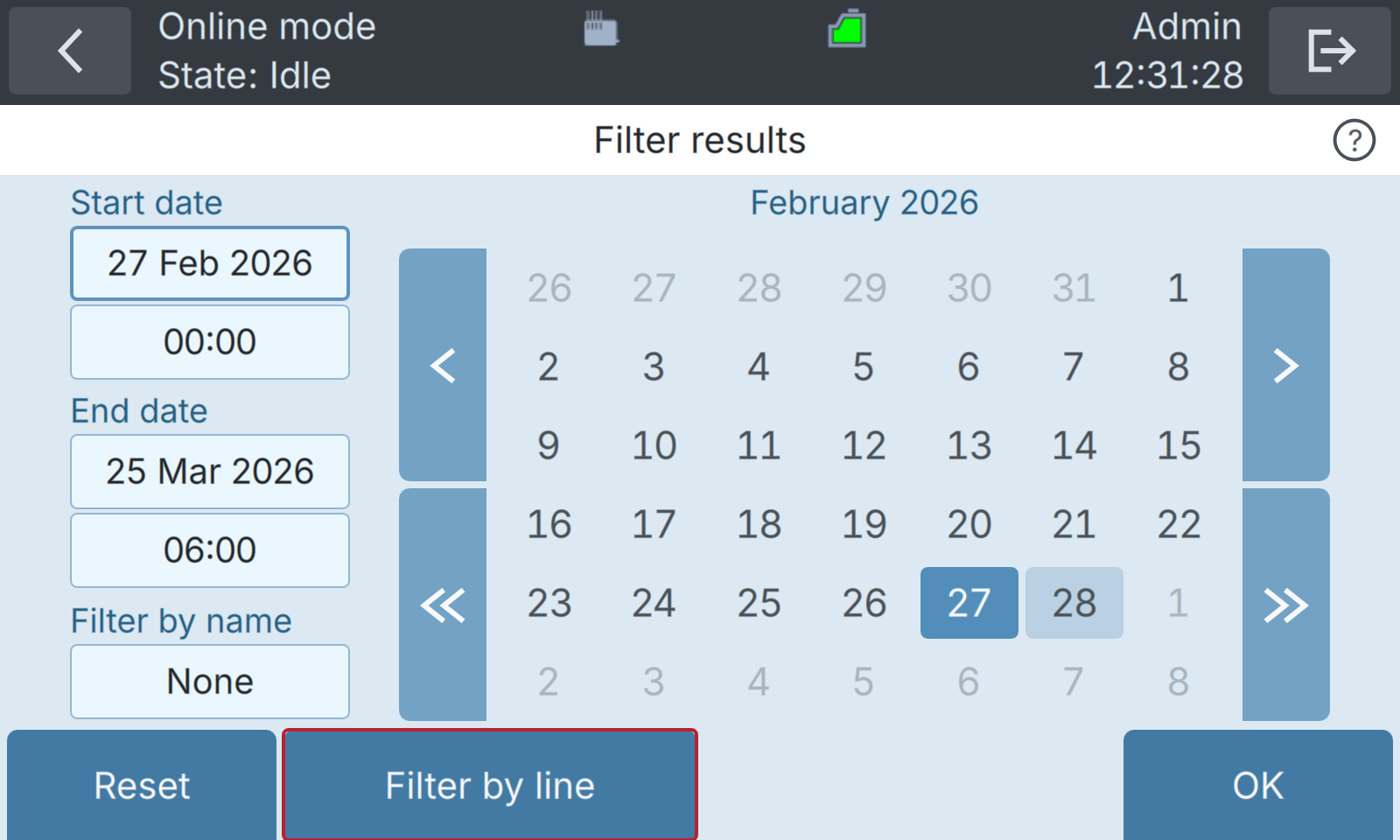
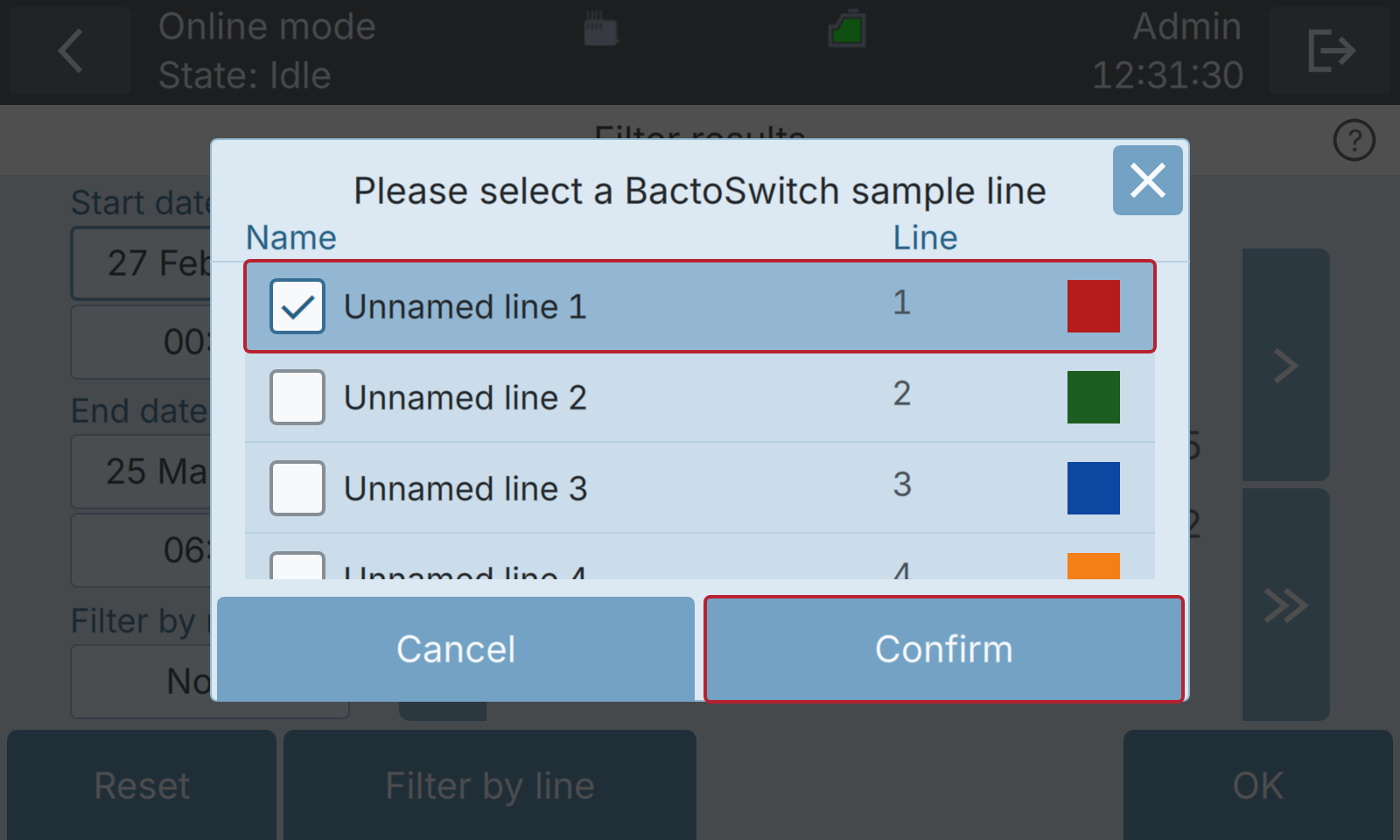
Filters not only apply to the Online mode results list, but also to the Online mode plot, which allows you to selectively plot results based on line numbers or line names (as defined in Line configuration). See also Filtering measurements in the BactoSense user manual.
5.1.3 Setting alarms
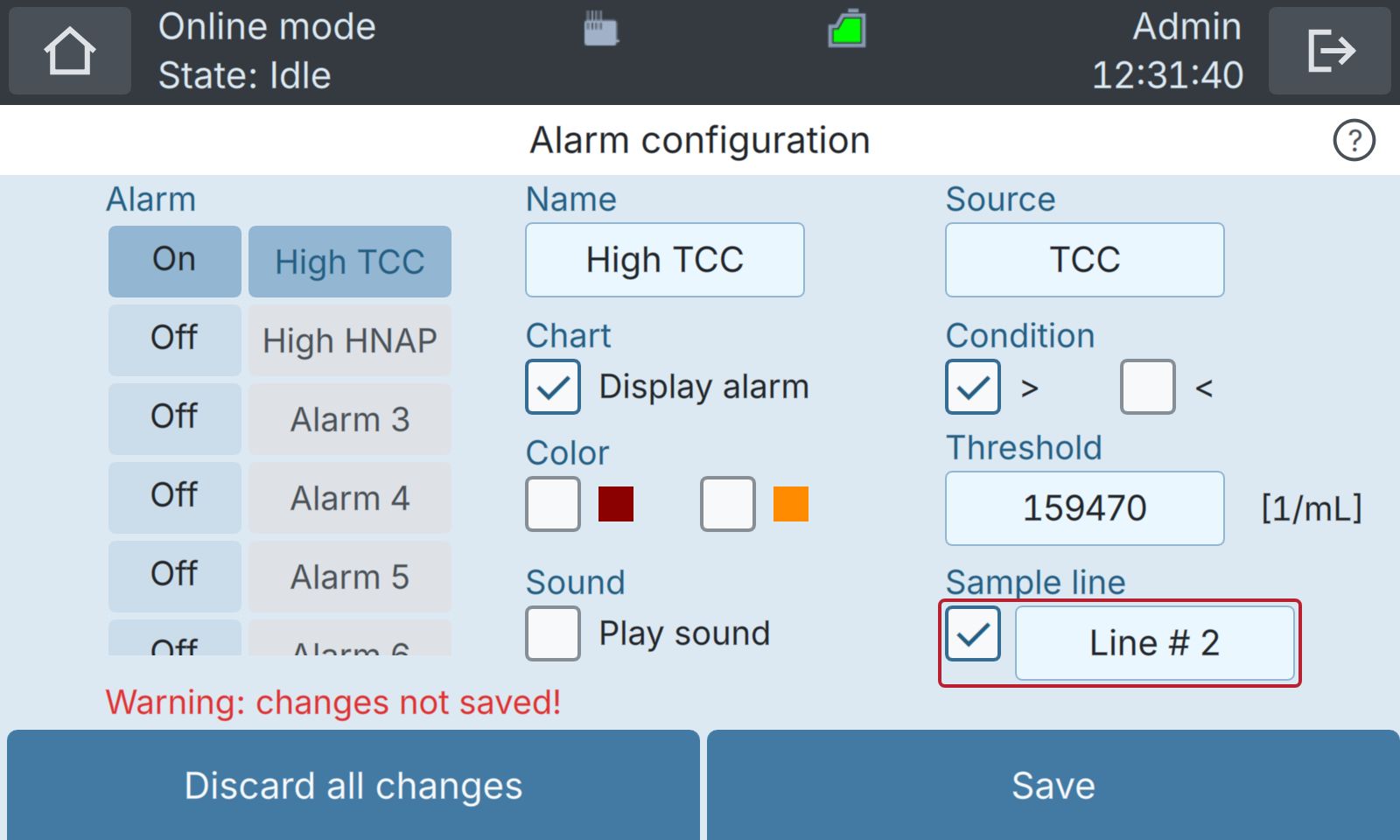
The Alarm configuration window (accessible via Settings / Online mode settings / Alarm) allows you to define alarms selectively on certain lines:
5.2 Remote control and data visualization
5.2.1 BactoCloud
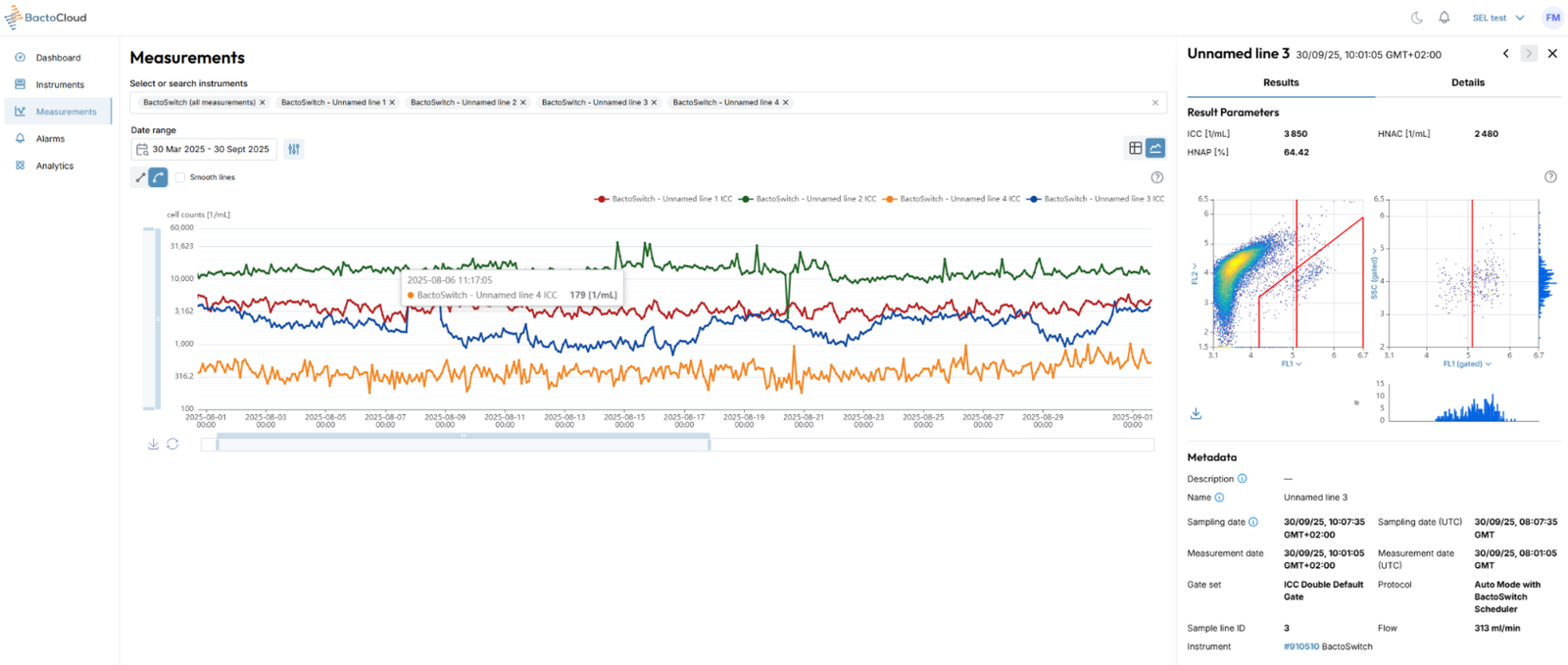
BactoCloud is bNovate’s cloud-based remote instrument control, data visualization and advanced analytics solution. The basic version of BactoCloud is available with all instruments.
BactoCloud includes features that make it particularly easy to visualize multi-line data generated by a BactoSense equipped with a BactoSwitch. Moreover, advanced analytics make differential calculations easy, e.g. for qualifying the microbiological efficiency of water treatment steps. See BactoCloud in the BactoSense user manual to connect the instrument.
5.2.2 Web User Interface
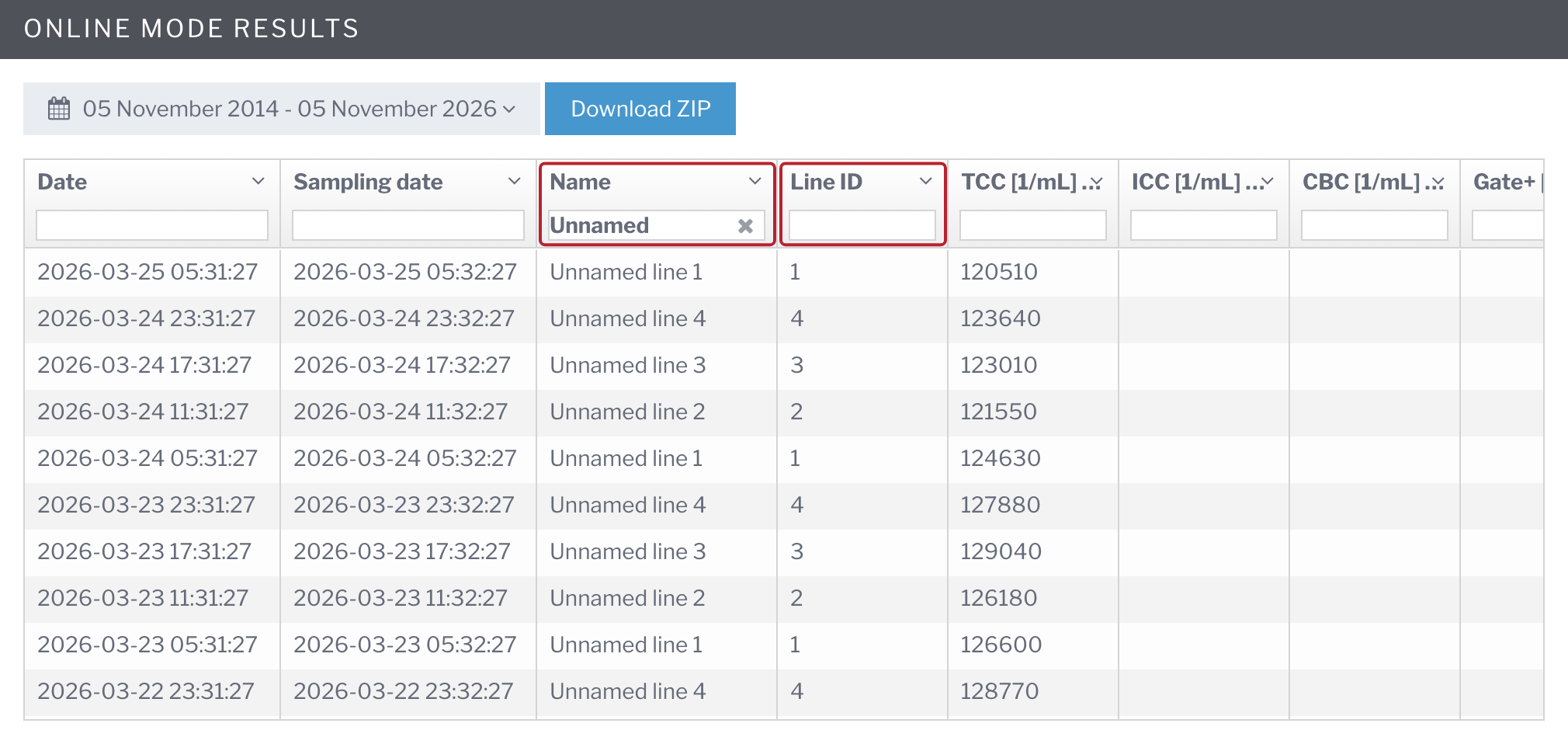
The web user interface of the BactoSense contains functionalities that allow filtering data from the different BactoSwitch lines.
In the Results tab, in the Online mode results section, it is possible to filter the data by Name or Line ID. Name corresponds to the line name, and Line ID corresponds to the line number set in Line configuration. Filtering also applies to the Online mode graph.
5.2.3 BactoSwitch control via BactoSense I/O-Box
The BactoSwitch operation can be controlled with a Programmable Logic Controller (PLC) via the BactoSense and the optional I/O-Box. Please refer to Digital inputs configuration and PLC mode in the BactoSense user manual for more detailed information. Here we only explain the specificities of BactoSwitch operation.
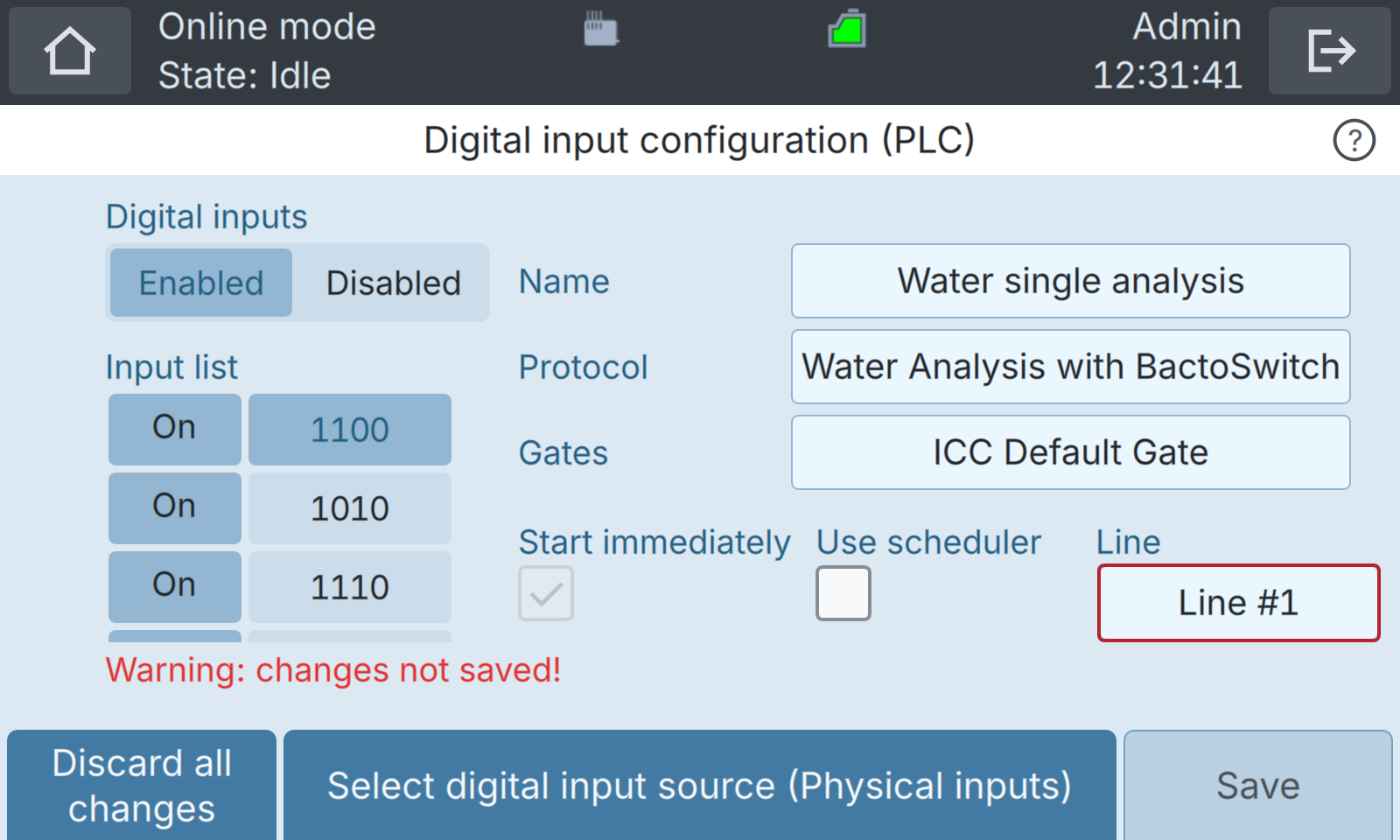
From Settings, navigate to Online mode settings / Digital inputs. The BactoSwitch line can be selected via the Line box.
In the example below, with the Use scheduler option unchecked, when the PLC sets the digital inputs to 1100, a measurement is started immediately on line #1:
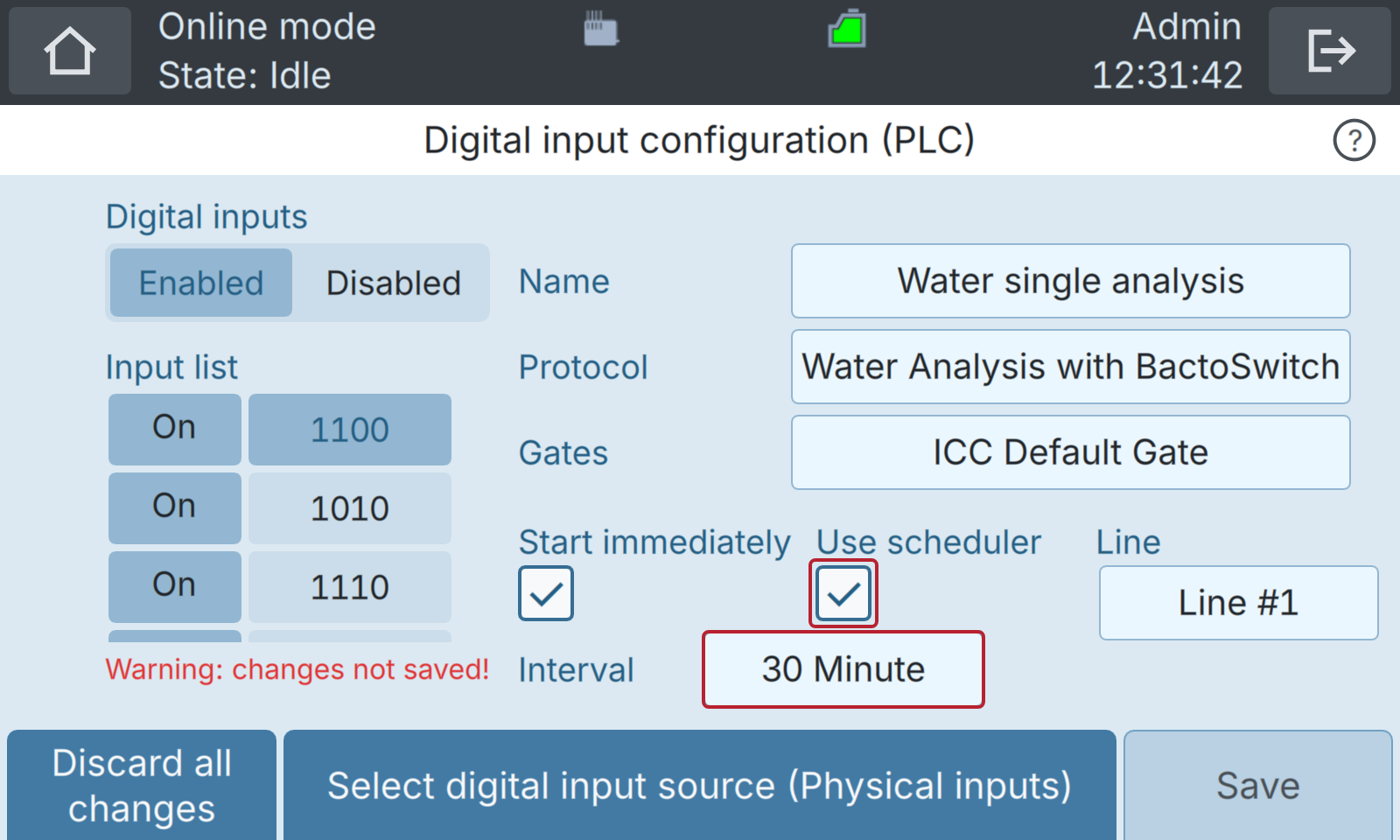
To start regular measurements, check the Use scheduler option and set the desired interval. All active lines are read sequentially, starting from the selected line (line #1 in this example):
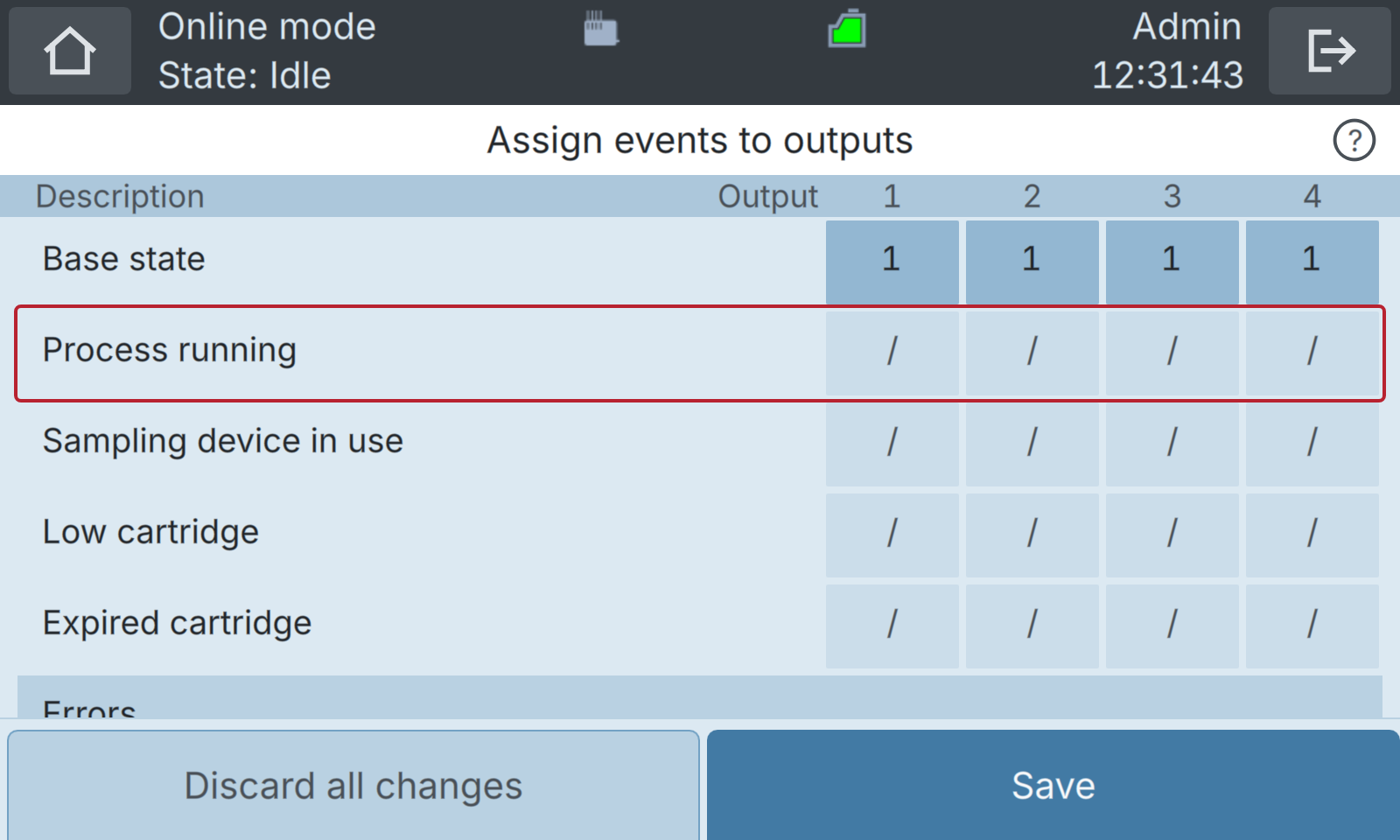
Reading data from a specific line via the analogue outputs has to be done right after the measurement has finished on that line, e.g. by assigning the Process running signal to a specific digital output and triggering the analogue output read-out when the status of that output changes. Note that this is not the default setting. Please refer to Digital output configuration in the BactoSense user manual for more details.
5.2.4 Modbus TCP
The BactoSwitch and BactoSense can be controlled remotely via the Modbus Transmission Control Protocol (TCP), which does not require any I/O-Box. Please refer to Modbus TCP in the BactoSense user manual for more details.
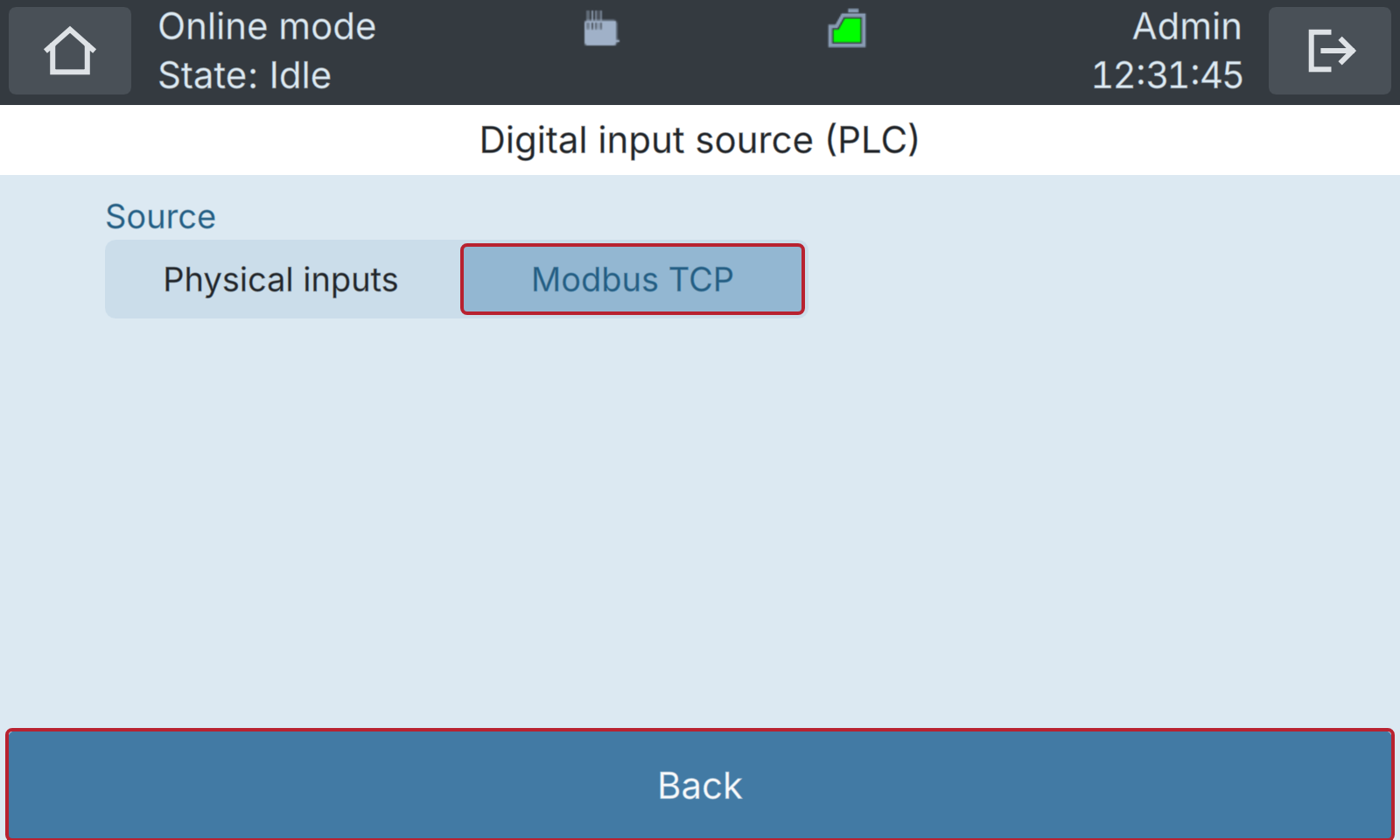
Setting up the instrument for Modbus TCP control is identical to what is explained in the previous section about the I/O-Box. To select Modbus TCP as digital input source, in the Digital input configuration (PLC) window, press Select digital input source at the bottom.
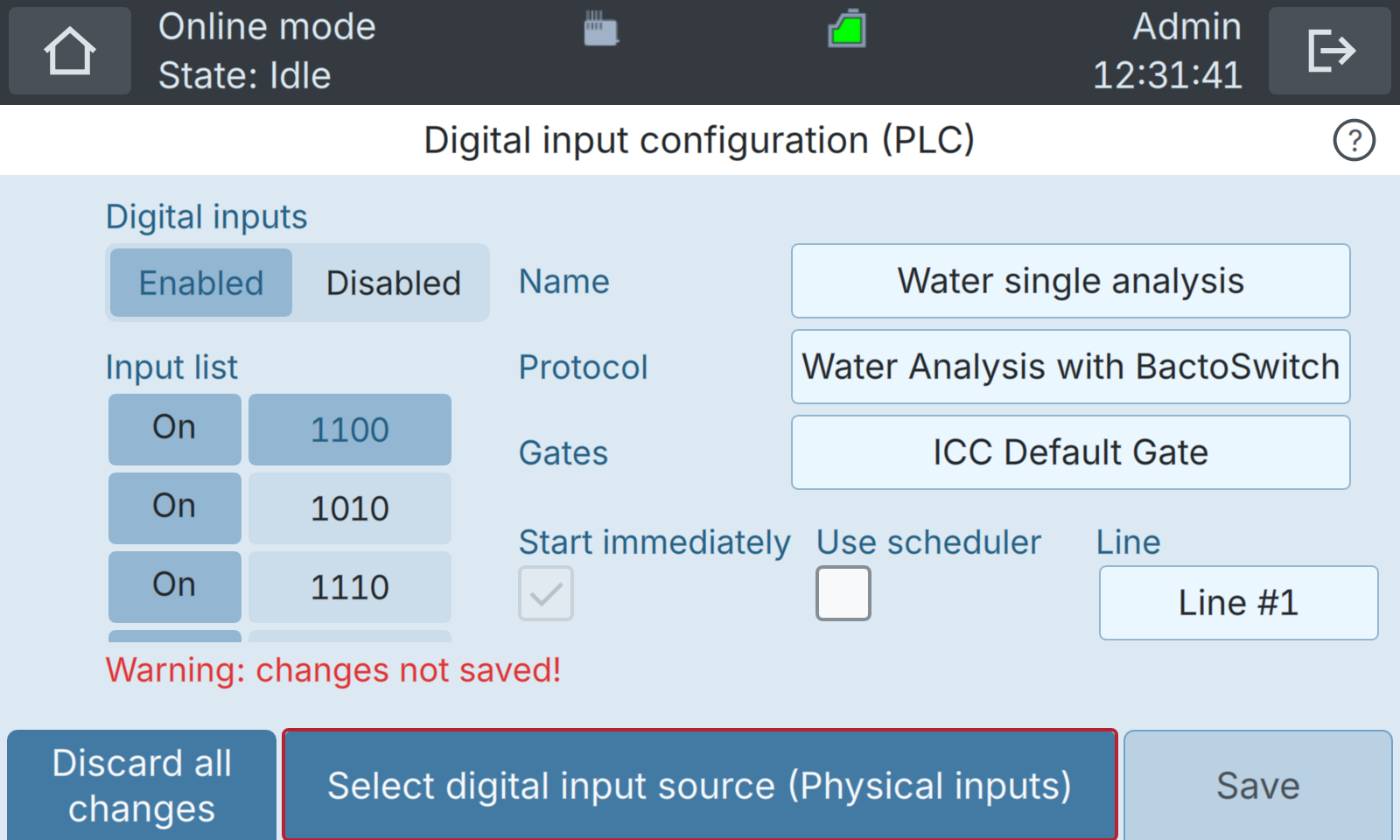
Then switch the source to Modbus TCP and press Back.
In addition to the usual BactoSense Modbus registers, specific Modbus registers are available to read information from the BactoSwitch:
- Current measurement stream
- Next measurement stream
- Flow rate
- Status
- Connection
- Solenoid valve state
Please refer to Address list on Modbus TCP in the latest BactoSense user manual for details about register addresses and formats.
Extracting results from a particular stream requires that the desired data is read out at the end of a measurement, which can be detected by the PLC when the Measurement stage register is set back to 0.